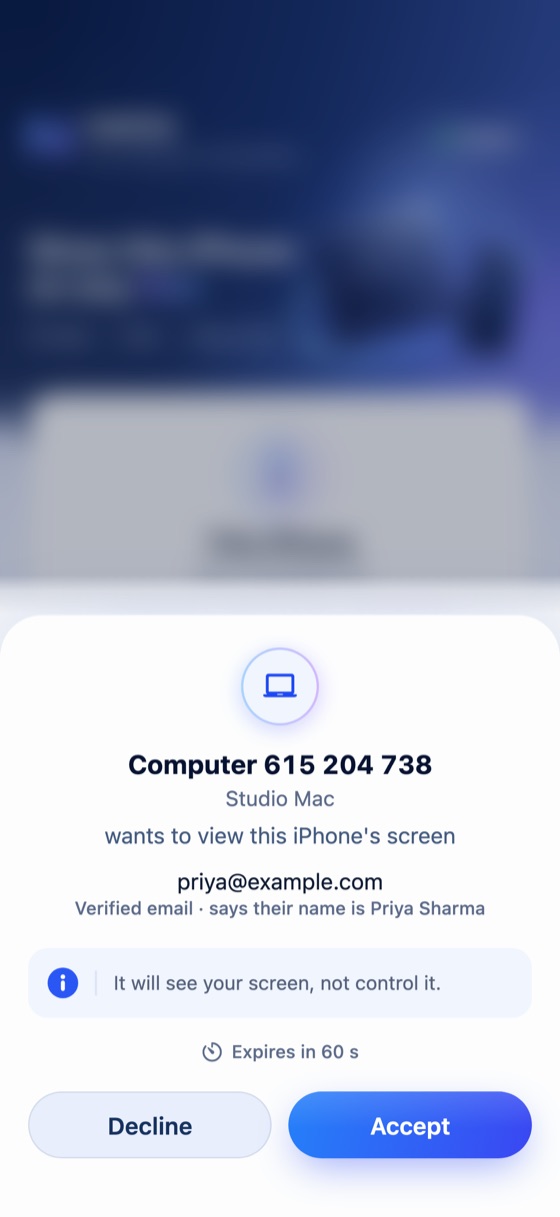
You say yes first.
Every request shows who is asking: their name, their verified email and their computer. Nothing starts until you accept.
- Verified email
- Expires in 60 seconds
- Accept or decline
Nexivo puts another computer’s screen in this browser. You send a link in a message; they open it. Nothing is installed, on either side.
View a computer
You get a link to send them. When they open it, they choose what to give you — control of their PC, or just a look at their screen. A Nexivo account is optional: log in on the next page so they see your verified email, or skip it.
Get a link to sendThey need to be at a computer: letting you control it needs a Windows PC, and showing you a screen works on any of them. The link works once, and for ten minutes.
Give access
You pick a window or a whole screen and send a link. No account needed: you see who is asking and let them in, and they watch in their browser. They cannot click or type, and nothing downloads.
Share this screenAlready have someone’s Computer ID? Connect using their ID.
Press Get a link to send. The link works once, for ten minutes.
WhatsApp, Messages, email: wherever you already talk to them.
They see your name and Computer ID, then pick: let you in, or just show you their screen.
Right here in your browser. If they let you in on a Windows PC, you can click and type on it too.
Get Nexivo for iPhone from the App Store. On Android, your phone’s browser can already see and control a computer until the app arrives.

Every request shows who is asking: their name, their verified email and their computer. Nothing starts until you accept.
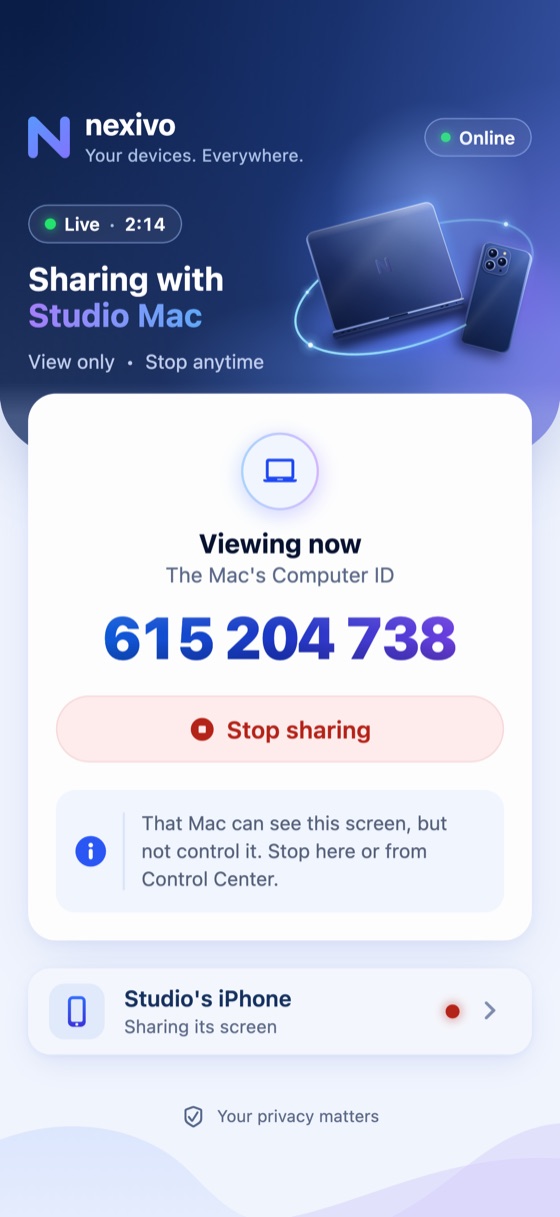
When you show your iPhone, the Mac can see it, not control it. Stop from the app or from Control Center.
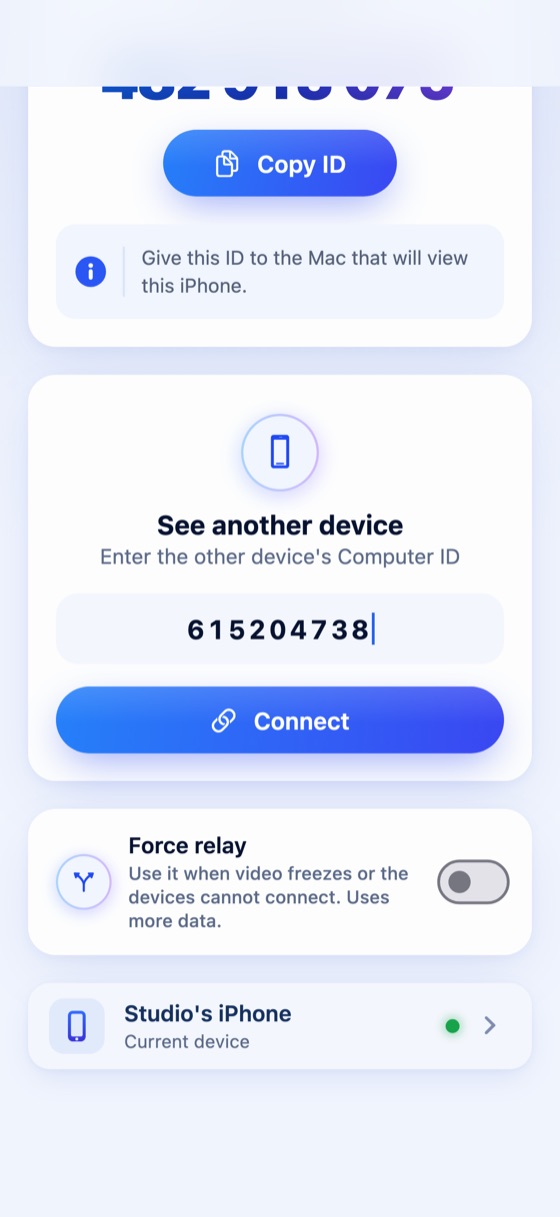
Type a computer’s nine-digit ID to see it from your phone. If a network gets in the way, Force relay takes another route.
Show your screen from Chrome, Edge, Firefox or Safari. No app at all.
Works todayShare this Mac, and see or control other computers.
Available nowShare this PC, and see or control other computers.
Available nowShow your iPhone, and see or control a computer, in the app.
On the App StoreSee and control a computer from your phone’s browser today.
App coming soonPrefer an app? Download Nexivo for Mac or Windows, or get it on the App Store for iPhone.
They see your name and Computer ID before they choose anything. A link works once, for ten minutes. And Nexivo never sees or stores a screen: it goes straight to the other device, encrypted.
No. They open your link and choose. You don’t need one either: logging in is optional, and if you do, they see your verified email.
If they are on a Windows PC and choose Let them in, yes. On any other computer the link shows you their screen, view only. To control a Mac, it needs Nexivo for Mac.
Yes: send a link and watch a computer from your phone’s browser. A phone cannot show its own screen from a browser; that is what the apps are for.
It works once, for ten minutes. Get a new one whenever you need it.
No. Nexivo connects the two devices and steps aside. The picture goes straight between them, encrypted, and is never stored.
How to use Nexivo walks through every device, step by step.